AI Image Generator for Concepts, Characters, and 3D Ideas
Turn a written idea into an image you can see, compare, and develop. This AI image generator combines a text prompt with optional reference images, style presets, aspect ratio, resolution, and result count. Create a new concept from text, guide it with up to ten references, or make several directions before choosing one for download or image-to-3D generation.
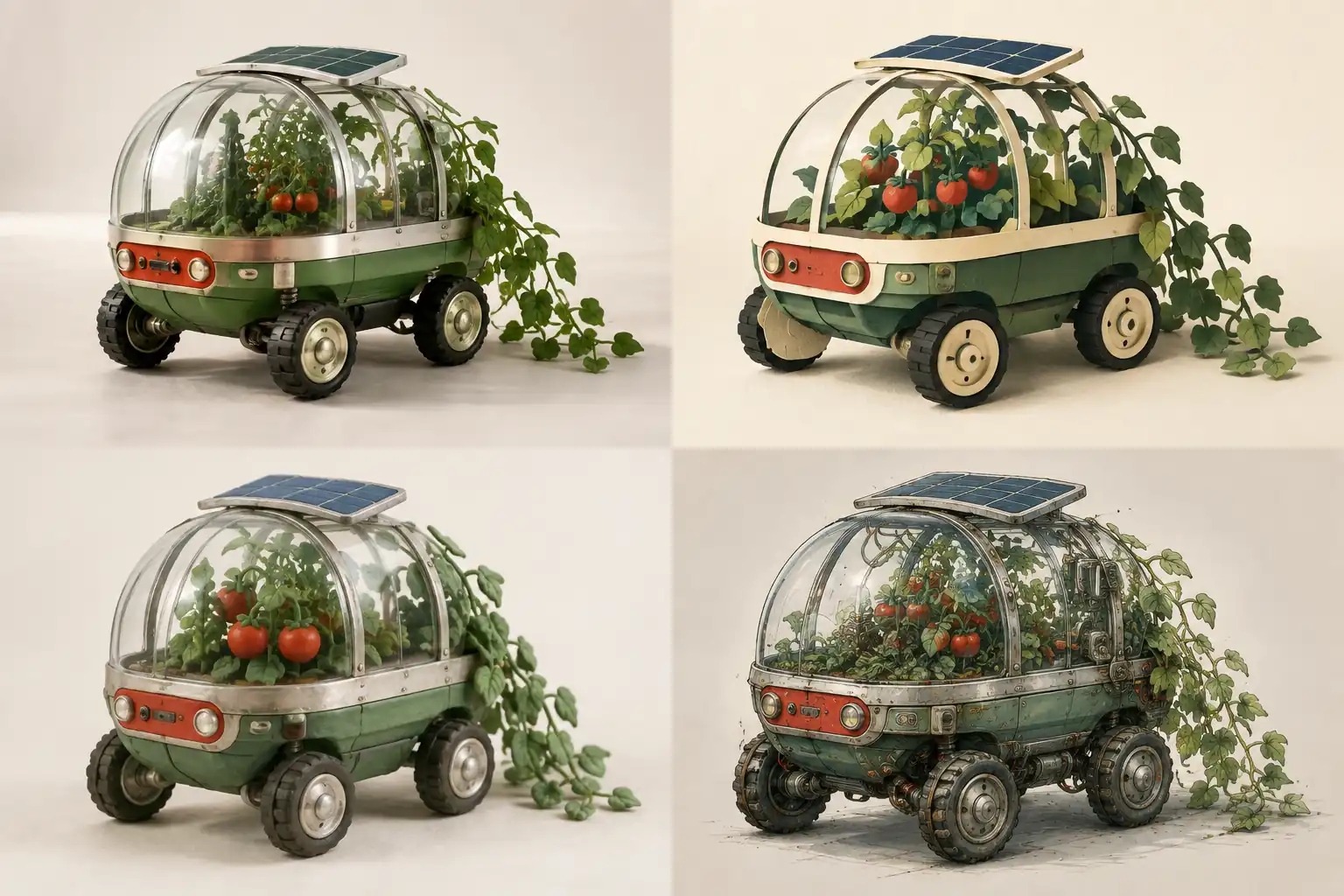
Start with the idea, not a blank canvas
Write the subject, composition, materials, and atmosphere in plain language. The text to image workflow turns that brief into a visible direction.
Use references without giving up text control
Add JPEG, PNG, or WebP images to suggest shape, palette, texture, or mood while the prompt states what the new result should become.
Move a selected result into 3D
Review each image, download it, remix its settings, or send the chosen result directly to the image-to-3D workspace.
How to generate an AI image from text
A useful result begins before generation. Define one visual goal, give the image generator from text enough concrete information, then compare the outputs against that goal instead of judging only surface polish.
- 01
Write a focused visual brief
Name one main subject and describe its shape, setting, materials, camera view, and light. Keep important requirements together and remove instructions that compete with each other.
- 02
Add references when they carry useful information
Upload one or more reference images when a silhouette, texture, color system, or mood is easier to show than explain. Each file can be JPEG, PNG, or WebP and up to 10 MB.
- 03
Choose the delivery shape
Select aspect ratio, supported 1K to 4K resolution, style, and one to four results. Match the frame to where the image will be used rather than cropping a finished idea later.
- 04
Compare, remix, or continue in 3D
Open the result details, inspect the full image, download a keeper, or reuse the settings for another pass. A suitable concept can continue directly into image to 3D.
Write prompts that make visual decisions
A text to image generator cannot infer which detail matters most to you. A strong prompt establishes the subject and composition first, then adds surfaces, lighting, and the few identity cues that should survive every variation.
- 1Subject
- Name the main object, character, creature, or scene and identify its most recognizable feature.
- 2Composition
- State full body or close-up, front or three-quarter view, camera height, pose, and the amount of surrounding space.
- 3Materials
- Describe important surfaces such as brushed metal, translucent resin, glazed ceramic, fabric, or weathered wood.
- 4Light and setting
- Place the subject in a studio, room, landscape, or simple background and describe the light direction and softness.
- 5Visual language
- Finish with a specific treatment such as industrial product render, stylized collectible, cinematic concept art, or clay maquette.
Shape the image before you generate it
Controls are creative decisions, not quality switches. Use the AI image generator to establish the intended frame, detail level, visual language, and relationship to the supplied references before spending a generation on the wrong direction.
Style presets
Choose a visual starting point such as stone, sci-fi armor, steampunk, porcelain, designer toy, miniature, clay, brick, or pet figurine. The prompt still defines the subject.
Aspect ratio
Set a square, landscape, or portrait canvas according to the final placement and the kind of composition the subject needs.
Image resolution
Use a supported resolution for the level of inspection and delivery you need. Resolution increases pixel dimensions, but it does not repair an unclear concept or prompt.
Reference guidance
Combine visual examples with text when specific shape, color, material, or atmosphere matters. References guide a new generation; they do not guarantee an exact copy or identity match.
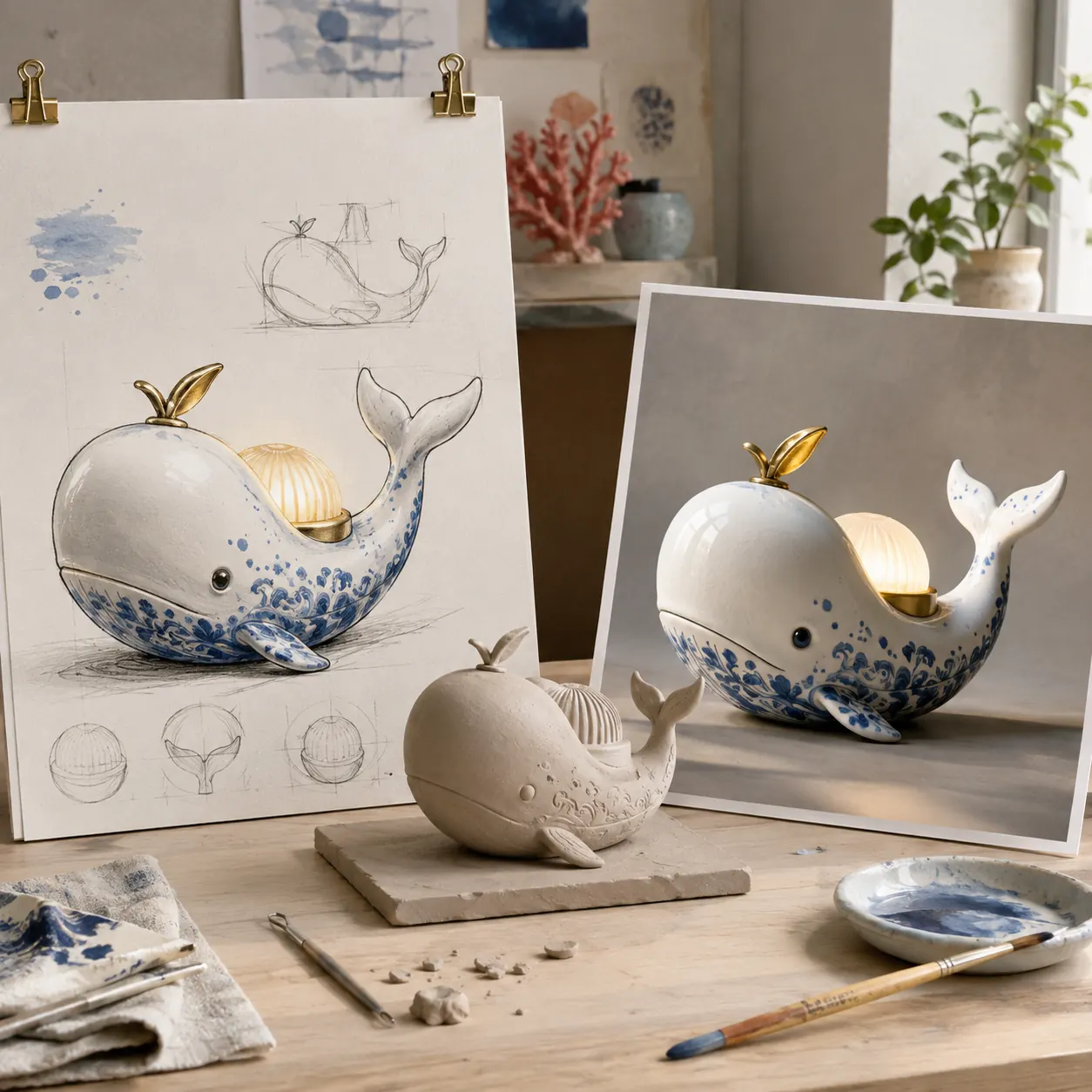
Use the image as a bridge from concept to 3D
When a written idea is too open for direct modeling, the AI image generator can establish a readable silhouette and material direction first. A selected concept then becomes a clearer single-view reference for the next stage.
- 1
Explore the silhouette
Generate several coherent interpretations before locking the proportions, major parts, and visual identity.
- 2
Choose a readable reference
Prefer a complete subject, clear separation from the background, and an angle that explains depth rather than hiding it.
- 3
Continue with image to 3D
Send the selected image to the 3D workspace, select the appropriate mode and quality, then inspect the inferred geometry and materials.
Choose between exploration and delivery
Not every result needs the same next step. Keep iterating while the visual direction is unresolved; move to download or 3D only when the image communicates the subject clearly enough for its intended use.
Remix the direction
Reuse the settings from a completed task and make a deliberate change instead of rebuilding the brief from memory.
- Refine an ambiguous subject or composition
- Try a different style, ratio, or resolution
- Replace references that pull the result off course
Use the selected result
Open the full image and decide whether it is ready as a visual asset or as input for another creative workflow.
- Download the generated image
- Keep the task and settings in private history
- Send a complete subject into image-to-3D generation
What this image workflow does and does not promise
Generative images vary from one task to the next. Treat each output as a new visual proposal, inspect important details at full size, and plan for another pass when the result misses a structural requirement.
One to four images per task
Generate multiple alternatives when comparison matters, or use a single result for a more focused iteration.
Task history and reusable settings
Return to previous generations, review their settings, download completed images, and remix a useful starting point.
Standard image output
The result is a finished raster image, not an editable layered document, vector source file, or automatically separated production asset.
About AI image generation
Practical answers about prompts, reference files, formats, resolution, result consistency, and the next step after generation.
What is an AI image generator?
An AI image generator creates a new raster image from a natural-language prompt and, when provided, visual references. You describe the subject and direction, choose options such as style and aspect ratio, and receive images that can be reviewed, downloaded, or remixed.
How is text to image different from image editing?
Text to image creates a new visual interpretation of your brief. References can guide the result, but the workflow does not directly edit individual pixels or preserve every element of an uploaded source exactly.
What should I include in a text-to-image prompt?
Include one main subject, composition or camera view, defining shapes, important materials, setting, lighting, and a specific visual language. Put critical requirements first and remove contradictory descriptions. The current prompt accepts up to 1,000 characters.
Can I upload reference images?
Yes. You can add up to ten JPEG, PNG, or WebP reference images, each no larger than 10 MB. Use references for shape, color, material, or mood, and use the prompt to explain what the new result should become.
Which image sizes and aspect ratios are available?
The page supports square 1:1, landscape 16:9 and 4:3, and portrait 9:16 and 3:4 ratios. Resolution options include 1K, 2K, and 4K when supported by the selected generation model.
How many images can I generate at once?
A task can request one, two, three, or four images. Multiple results help compare directions, while one result is useful when you are making a narrow controlled change.
Will the same prompt always create the same image?
No. Generated results can vary even when the brief is similar. Reuse task settings, keep important requirements explicit, and change one major variable at a time when you need a more controlled iteration.
Can I use a generated image to create a 3D model?
Yes. Open a completed result and choose the image-to-3D action. A complete subject with a clean silhouette, simple background, and visible depth cues gives the next workflow more useful information.
What can I do if an image generation fails?
Check that the prompt is within the character limit and every reference uses a supported format and file size. Then retry with fewer references or a simpler brief. Failed tasks remain identifiable in history and can be removed.
Are generated images stored in my history?
Completed, processing, and failed tasks appear in the current account's private history. You can review results and settings, download a completed image, reuse a task, or delete the entire generation task.
Turn the next idea into a visible direction
Write one focused brief, choose the frame and style, then use the AI image generator to compare up to four original results. Download a keeper or continue with the selected image in 3D.